Assets
GCubeSDK can load files in two ways:
Embedded files. The build bakes the file into the DOL. Put these files into data/ or textures/.External files. Larger files are loaded from disc. Put these files into data_ext/.
Memory
The hardware has 43 MB of RAM. This RAM is not one block.
| Memory | Size | Use |
|---|---|---|
| Main RAM | 24 MB | DOL, code, loaded files |
| Video RAM | 3 MB | Framebuffer, Z-buffer, texture cache |
| ARAM | 16 MB | Audio and DVD I/O |
Keep assets small. Do not load all files at the same time. Audio is not compressed. Make sure it fits.
Embedded Files
Files that are stored into the data/ folder will be
embedded into the final DOL file. make convert each file to
an object files first. After that all these files will be written down
in internalFiles.h. Loaders try
to load files from the embedded map first. So Embedded Files have
priority over External Files. Keep that in mind if an external and
embedded file share the same name. Try to keep the amount of embedded
files small. Small textures and a few 3d models are fine. Too many large
files use main RAM. See Memory.
External Files
Files that are stored into the data_ext/ folder will be
later loaded from disc. make iso copies these files into
disc://fsroot/files. Loaders
try to load files from the embedded map first. So Embedded Files have
priority over External Files. Keep that in mind if an external and
embedded file share the same name. You need to fully configure GCubeSDK
first before being able to make a Disc
Image.
Textures
TPL
The hardware uses the *.tpl format for textures (texture
palette library). Just put your *.png, *.bmp,
*.jpg / jpeg files into textures/ and run
make or make texutres for GCubeSDK to convert
them into *.tpl.
SCF
When running make or make textures GCubeSDK
is trying to convert your image files into *.tpl using
gxtexconv. This converter is looking for a
*.scf file, which looks like this:
<filepath="cloudRGBA.png" id="cloudRGBA" colfmt=4 />most important is the colfmt, which is supporting the following texture formats:
| colfmt | format |
|---|---|
| 0 | I4 (Intensity 4bit) |
| 1 | I8 (Intensity 8bit) |
| 2 | IA4 (Intensity + Alpha 4bit) |
| 3 | IA8 (Intensity + Alpha 8bit) |
| 4 | RGB565 (R5G6B5) |
| 5 | RGB5A3 (R5G5B5 or A3R4G4B4) |
| 6 | RGBA8 (A8R8G8B8) |
| 8 | CI4 (Color Indexed 4bit) |
| 9 | CI8 (Color Indexed 8bit) |
| 14 | CMPR (Compressed Format) |
if there is no *.scf file specified, GCubeSDK will
create one automaticly for you with colfmt=4 (RGB565).
gxtexconv
make is running gxtexconv for every texture
file in textures. But if you need to convert a texture file
by hand:
gxtexconv -i <imagepath> [-o <outputfile>.tpl colfmt=<texfmt>]3D models
Load models with a Loader. Pass the
file name only, for example person.glb or
house.obj. Loaders look in the
embedded map first. If the file is not
there, and a disc is present, they read it from data_ext/
on the disc. The typical polycount from other titles of that era, range
from around 2,000 to 5,000 polygons. Also make sure
that Vertex is not influenced by more than 4 bones at
the same time.
GLTF / GLB
Use GLTFLoader for .gltf
and .glb models. The loader builds a Group with Mesh or SkinnedMesh children, bones, and animation
clips, if there are bones and animation present in the file.
.glb is one file. That is the easier format for embedded files. .gltf can point
at extra .bin buffers and images. Those extra files must
also sit in data/ or data_ext/ and load by
file name. DATA does not use
subfolders, so keep a .gltf set flat, or pack the model as
.glb.
GLTFLoader* loader = new GLTFLoader();
Group* obj         = loader->load("person.glb");
scene->add(obj);
If the file has animation, the first AnimationClip is stored on the group. Create an AnimationMixer on that group and play the clip. See DemoGLTFAnimation and AnimationMixer.
AnimationMixer* mixer = new AnimationMixer(obj);
mixer->clipAction(*((AnimationClip*)obj->animations[0]));
Call mixer->update(...) each frame to see the
animation.
OBJ / MTL
Use OBJLoader for .obj
files. The loader builds a Group of Mesh objects, split by material.
If the OBJ names an MTL file (mtllib house.mtl), OBJLoader runs MTLLoader for you. MTLLoader reads Kd,
Ka, map_Kd, map_d and builds LambertMaterial objects. TextureLoader then loads the maps.
Put the .obj, the .mtl, and the texture
files next to each other in data/ or
data_ext/. Load the OBJ by file name. The MTL and maps use
the same name rule.
OBJLoader* loader = new OBJLoader();
Group* house      = loader->load("house.obj");
scene->add(house);
You can also load an MTL file on its own with MTLLoader. See DemoOBJ.
Audio
Load sound with AudioLoader. Pass
the file name only, for example
sample.wav. Attach an AudioListener to the camera. That object
is the listener in the scene. Several Audio
and AudioEmitter objects can play at
the same time. Use PCM WAVE files (8-bit or 16-bit).
AudioListener* listener = new AudioListener();
AudioLoader*   loader   = new AudioLoader();
Audio*         music    = new Audio(listener);
camera->add(listener);
music->setBuffer(loader->load("sample.wav"));
music->setLoop(true);
music->setVolume(0.45f);
music->play();
Files Management
The editor shows the asset folders as
file trees. You can add files, add folders, remove files, and open the
folder in the OS explorer. You can also copy files into
data/ or data_ext/ by hand. The trees only a
show the content of those folders.
Embedded Files Manager
The Embedded Files Manager is the Resources list on
the DOL tab. It shows the files in
data/ (DATA).
make bakes these files into the DOL.
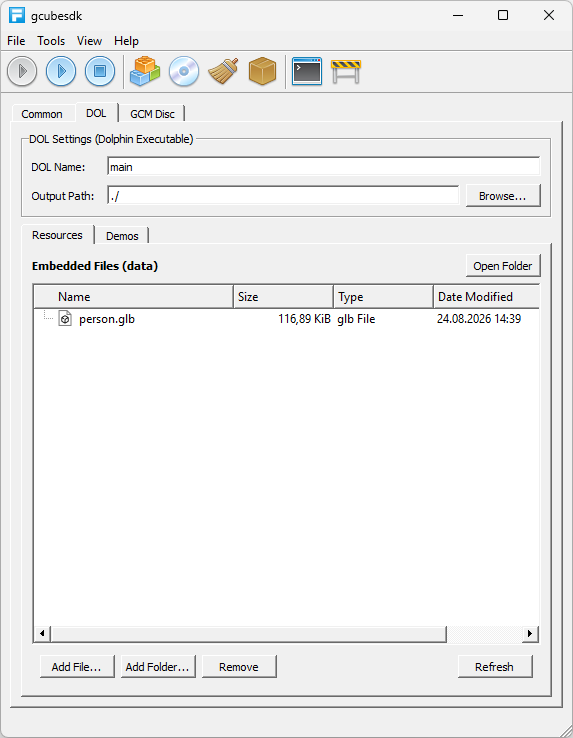
| Button | Action |
|---|---|
| Open Folder | Open the data folder. |
| Add File... | Copy a file into data/. |
| Add Folder... | Create a folder in data/. |
| Remove | Delete the selected files. |
| Refresh | Reload the file list. |
Keep this list small. Do not build a deep folder tree here. Loaders ask for the file name only.
External Files Manager
The External Files Manager is the Resources list on
the GCM Disc tab. It shows the
files in data_ext/ (DATAEXT). make iso copies this folder,
including subfolders, to fsroot/files on the disc.
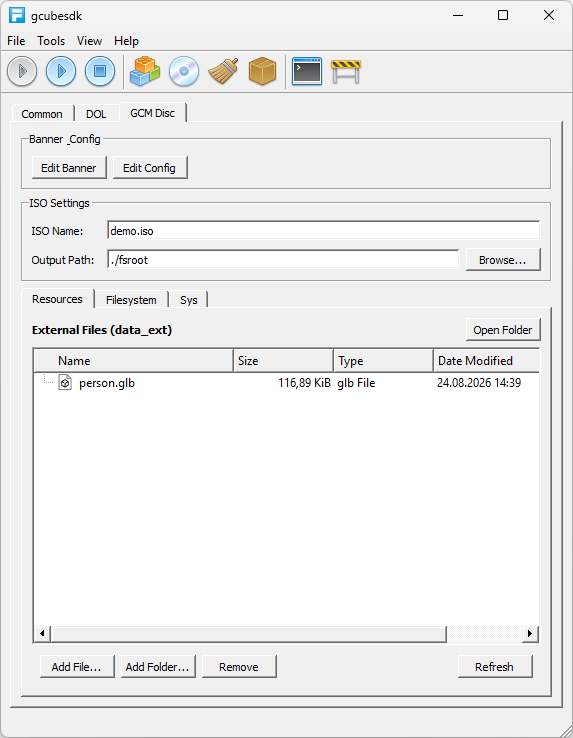
| Button | Action |
|---|---|
| Open Folder | Open the data_ext folder. |
| Add File... | Copy a file into data_ext/. |
| Add Folder... | Create a folder in data_ext/. |
| Remove | Delete the selected files. |
| Refresh | Reload the file list. |
You need a disc image and make runiso (or Run ISO in the editor) to load these files at runtime. Loaders still try embedded files first. If an embedded file and an external file share the same name, the embedded file gets prioritized.
The GCM Disc tab also has a Filesystem list. That
list is fsroot/files after an ISO build.
You cannot add files there. Use data_ext/ and run make iso again. You also need the
four Sys files before an ISO
build works.