Editor
The editor is the graphical user interface for GCubeSDK. The editor is a collection of tools, configuration fields, and project scaffolding. The editor creates a project with a clean folder structure. You keep the project settings in config.ini. The editor executes make commands for you.
Menu
File
| Command | Action | Shortcut |
|---|---|---|
| New Project | Create a project in an empty folder. | Ctrl+N |
| Open Project | Open a folder that contains config.ini. |
Ctrl+O |
| Recent Projects | Open a project from the recent list. | |
| Close Project | Close the open project. | |
| Exit | Close the editor. | Ctrl+W |
Tools
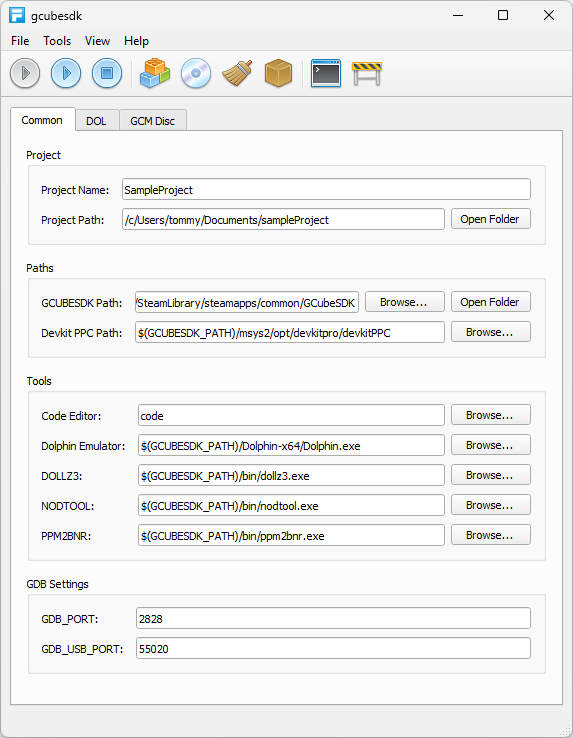
The Tools menu contains mostly make commands. The toolbar holds the most common used tools.
| Command | Action | Shortcut |
|---|---|---|
| Run | Start the built DOL in Dolphin. See make run. GCubeSDK offers to download Dolphin if it cannot find one. | F5 |
| Run GUI | Same as Run, except Dolphin shows its main user interface. See make rungui. | Shift+F5 |
| Stop | Stop Dolphin. See make stop. | F6 |
| Build | Compile your source into main.elf and
main.dol. See make. |
Shift+F7 |
| Build & Run | Build, then start Dolphin in batch mode. See make, then make run. | F7 |
| Build ISO / GCM | Build a disc image. See make iso. You cannot run this command if you do not set the Sys files first. | F8 |
| Run ISO | Start Dolphin with the ISO in batch mode. You can edit the ISO name
in config.ini. See make runiso. |
F9 |
| Run ISO GUI | Start Dolphin with the ISO and show the Dolphin window. You can edit
the ISO name in config.ini. See make runguiiso. |
Shift+F9 |
| Clean | Remove the build files. See make clean. | |
| Deploy | Rebuild libgcubesdk.a in the GCubeSDK folder, when
source files are present. See make libbuild. |
|
| Open Code | Open the project in the code editor that you provided in the Common tab. | F10 |
| Debug | Start GDB. See make gdb. |
View
The View menu sets the look of the editor.
| Command | Action |
|---|---|
| Default | Set the default theme. |
| Windows 98 | Set the Windows 98 theme. |
Help
| Command | Action | Shortcut |
|---|---|---|
| Online Documentation | Open this manual. | F12 |
| About | Show the version information. | |
| License | Show the EULA. |
Toolbar
The toolbar is below the menu bar. The toolbar holds the most common tools from the Tools menu.
Common
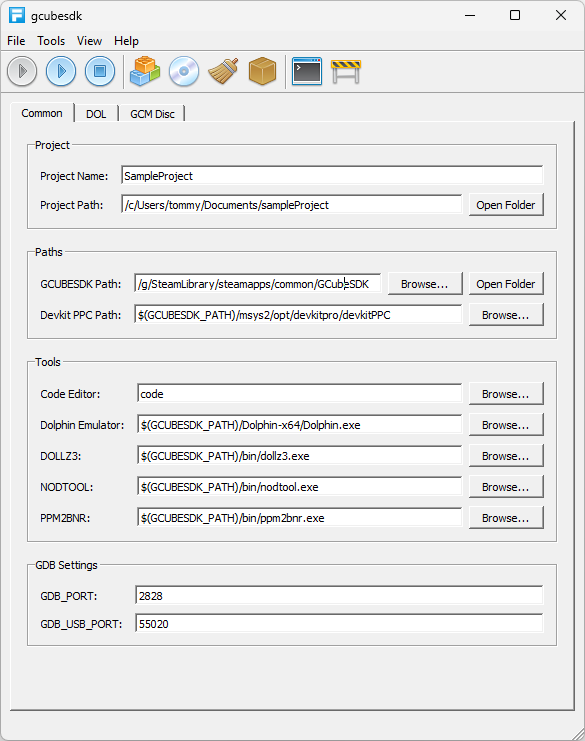
The Common tab sets the project, the GCubeSDK install, the compiler,
the external tools, and the GDB ports. The editor writes these fields to
config.ini if any change occur. If you
prefer working in a terminal, edit config.ini in the
projects root folder.
Project
| Field | Action |
|---|---|
| Project Name | Set the name of the project. See PROJECT_NAME. |
| Project Path | Show the project folder. The editor sets this path when you create or open a project. See PROJECT_PATH. |
| Open Folder | Opens the project folder in the OS file explorer. |
Paths
Set GCUBESDK_PATH first.
You can use $(GCUBESDK_PATH) in other path fields.
| Field | Action |
|---|---|
| GCUBESDK Path | Set the GCubeSDK install folder. Use Browse to set the path. Use Open Folder to open the folder. See GCUBESDK_PATH. |
| Devkit PPC Path | Path to the devkitPPC toolchain. See DEVKITPPC_PATH. |
Tools
These programs run when you start make commands.
| Field | Action |
|---|---|
| Code Editor | Set the program for Open Code. The default is code. See
CODE_EDITOR. |
| Dolphin Emulator | Path to Dolphin. Empty path: the editor offers a download. See DOLPHIN. |
| DOLLZ3 | Set dollz3. See DOLLZ3. |
| NODTOOL | Set nodtool. See NODTOOL. |
| PPM2BNR | Set ppm2bnr. See PPM2BNR. |
GDB Settings
| Field | Action |
|---|---|
| GDB_PORT | Set the GDB port. The default is 2828. See GDB_PORT. |
| GDB_USB_PORT | Set the USB Gecko port. The default is 55020. See GDB_USB_PORT. |
For the debugger steps, see Debugger.
DOL
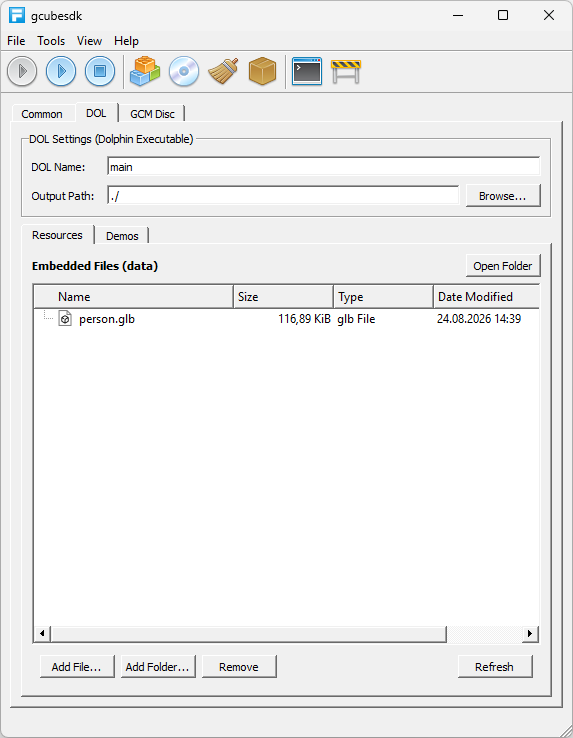
The DOL tab sets the GameCube executable. Dolphin can load this file.
The build writes main.elf and main.dol.
DOL Settings
| Field | Action |
|---|---|
| DOL Name | Set the name of the DOL. The default is main. |
| Output Path | Set the folder for the DOL. Use Browse to set the folder. The
default is ./. |
The DOL tab has two lists: Resources and Demos.
Resources
The Resources list shows the files in the data folder.
The build writes these files into the DOL.
| Button | Action |
|---|---|
| Open Folder | Open the data folder. |
| Add File... | Copy a file into the data folder. |
| Add Folder... | Create a folder in the data folder. |
| Remove | Delete the selected files. |
| Refresh | Reload the file list. |
Demos
The Demos list shows the demo source files in the GCubeSDK
demos folder.
| Button | Action |
|---|---|
| Open Folder | Open the demos folder. |
| Refresh | Reload the file list. |
GCM Disc
The GCM Disc tab sets the disc image. Use this tab when you need files on the disc.
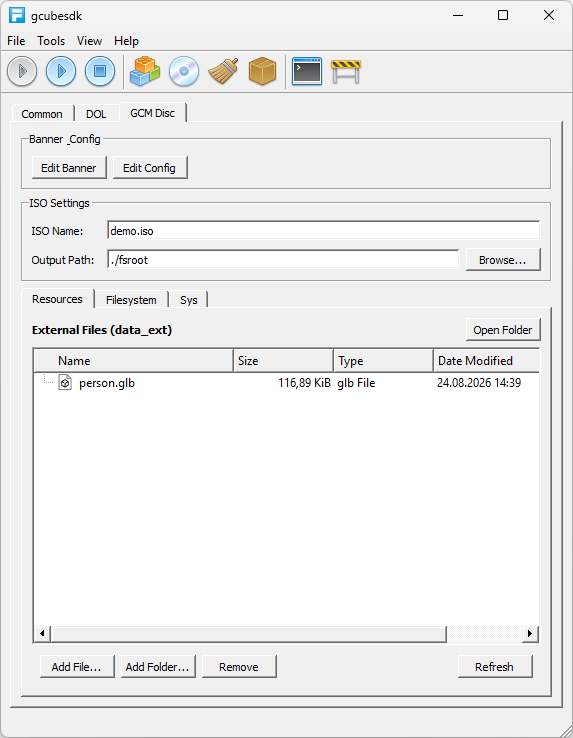
Banner & Config
| Button | Action |
|---|---|
| Edit Banner | Open the banner dialog. Set the title, the company, and
banner.ppm. |
| Edit Config | Open config.ini. See Config. |
ISO Settings
| Field | Action |
|---|---|
| ISO Name | Set the name of the disc image. The default is
demo.iso. |
| Output Path | Set the folder for the disc files. Use Browse to set the folder. The
default is ./fsroot. |
The GCM Disc tab has three lists: Resources, Filesystem, and Sys.
Resources
The Resources list shows the files in the data_ext
folder. make iso copies these files to the disc.
| Button | Action |
|---|---|
| Open Folder | Open the data_ext folder. |
| Add File... | Copy a file into the data_ext folder. |
| Add Folder... | Create a folder in the data_ext folder. |
| Remove | Delete the selected files. |
| Refresh | Reload the file list. |
Filesystem
The Filesystem list shows the files in fsroot/files
after an ISO build. You cannot add files in this list.
| Button | Action |
|---|---|
| Open Folder | Open the fsroot/files folder. |
| Refresh | Reload the file list. |
Sys
The Sys list is the four disc boot files for an ISO. GCubeSDK does not ship them. See System files.
| Field | Action |
|---|---|
| apploader.img | Set the path to apploader.img. |
| fst.bin | Set the path to fst.bin. |
| bi2.bin | Set the path to bi2.bin. |
| boot.bin | Set the path to boot.bin. |